Today, we’re announcing the general availability of AWS Interconnect – multicloud, a managed private connectivity service that connects your Amazon Virtual Private Cloud (Amazon VPC) directly to VPCs on other cloud providers. We’re also introducing AWS Interconnect – last mile, a new capability that simplifies how you establish high-speed, private connections to AWS from your branch offices, data centers, and remote locations through your existing network providers.
Large enterprises increasingly run workloads across multiple cloud providers, whether to use specialized services, meet data residency requirements, or support teams that have standardized on different providers. Connecting those environments reliably and securely has historically required significant coordination: managing VPN tunnels, working with colocation facilities, and configuring third-party network fabrics. The result is that your networking team spends time on undifferentiated heavy lifting instead of focusing on the applications that matter to your business.
AWS Interconnect is the answer to these challenges. It is a managed connectivity service that simplifies connectivity into AWS. Interconnect provides you the ability to establish private, high-speed network connections with dedicated bandwidth to and from AWS across hybrid and multicloud environments. You can configure resilient, end-to-end connectivity with ease in a few clicks through the AWS Console by selecting your location, partner, or cloud provider, preferred Region, and bandwidth requirements, removing the friction of discovering partners and the complexity of manual network configurations.
It comes with two capabilities: multicloud connectivity between AWS and other cloud providers, and last-mile connectivity between AWS and your private on-premises networks. Both capabilities are built on the same principle: a fully managed, turnkey experience that removes the infrastructure complexity from your team.
AWS Interconnect – multicloud
AWS Interconnect – multicloud gives you a private, managed Layer 3 connection between your AWS environment and other cloud providers, starting with Google Cloud, and Microsoft Azure coming later in 2026. Traffic flows entirely over the AWS global backbone and the partner cloud’s private network, so it never traverses the public internet. This means you get predictable latency, consistent throughput, and isolation from internet congestion without having to manage any physical infrastructure yourself.
Security is built in by default. Every connection uses IEEE 802.1AE MACsec encryption on the physical links between AWS routers and the partner cloud provider’s routers at the interconnection facilities. You don’t need to configure these separately. Note that each cloud provider manages encryption independently on its own backbone, so you should review the encryption documentation for your specific deployment to verify it meets your compliance requirements. Resiliency is also built in: each connection spans multiple logical links distributed across at least two physical facilities, so a single device or building failure does not interrupt your connectivity.
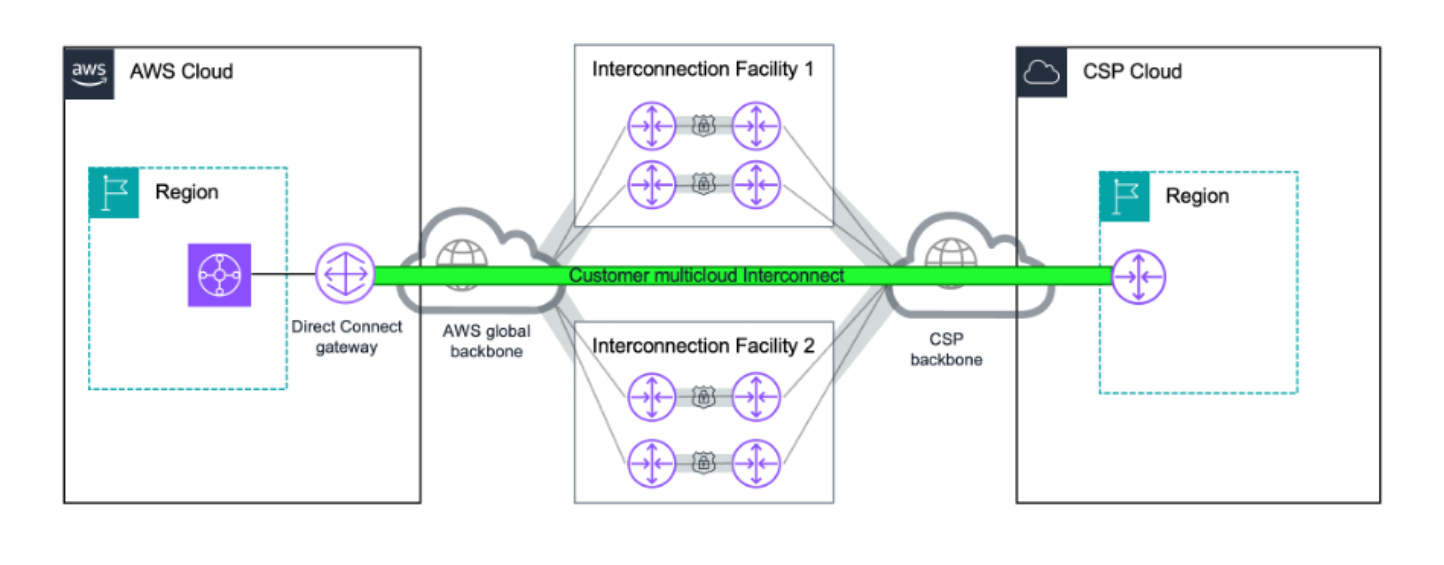 For monitoring, AWS Interconnect – multicloud integrates with Amazon CloudWatch. You get a Network Synthetic Monitor included with each connection to track round-trip latency and packet loss, and bandwidth utilization metrics to support capacity planning.
AWS has published the underlying specification on GitHub under the Apache 2.0 license, providing any cloud service provider the opportunity to collaborate with AWS Interconnect – multicloud. To become an AWS Interconnect partner, cloud providers must implement the technical specification and meet AWS operational requirements, including resiliency standards, support commitments, and service level agreements.
How it works
Provisioning a connection takes minutes. I create the connection from the AWS Direct Connect console. I start from the AWS Interconnect section and select Google Cloud as the provider. I select my source and destination regions. I specify bandwidth, and provide my Google Cloud project ID. AWS generates an activation key that I use on the Google Cloud side to complete the connection. Routes propagate automatically in both directions, and my workloads can start exchanging data shortly after.
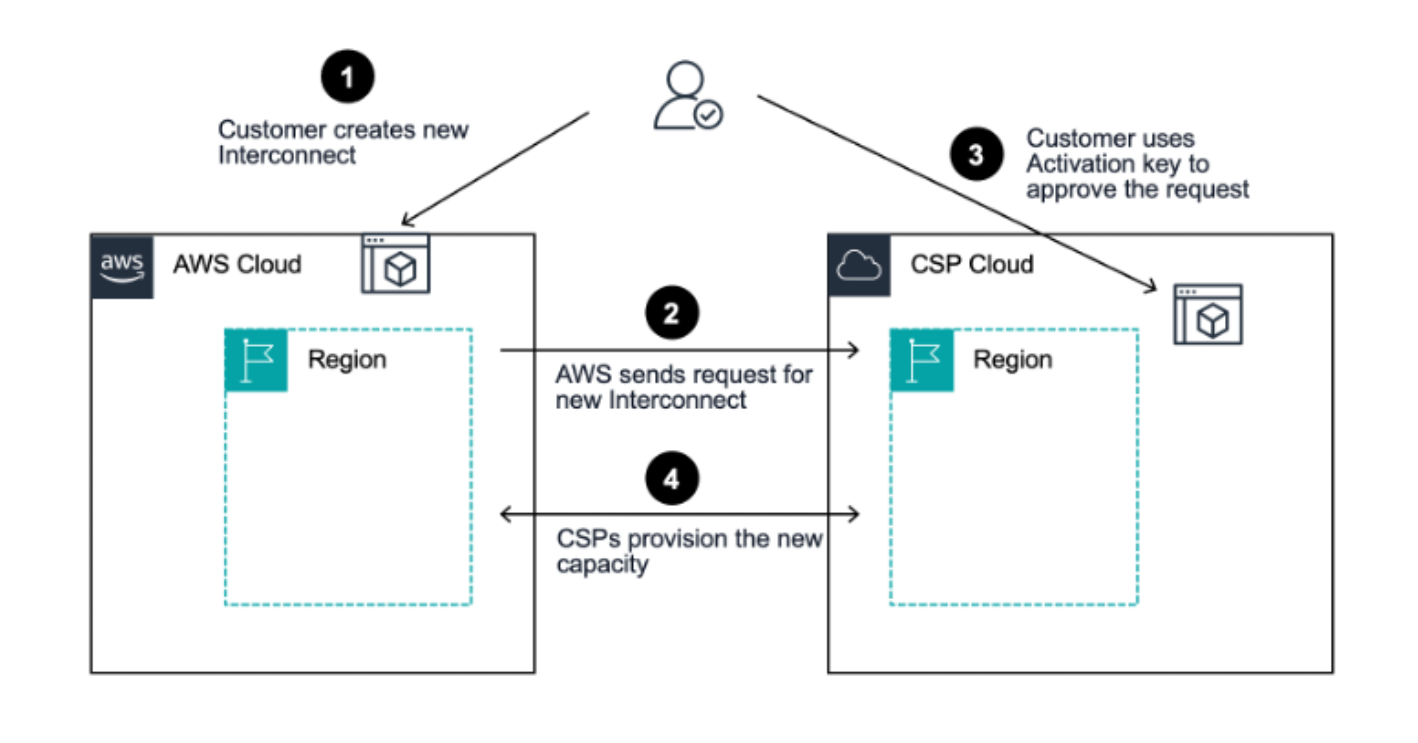 For this demo, I start with a single VPC and I connect it to a Google Cloud VPC. I use a Direct Connect Gateway. It’s the simplest path: one connection, one attachment, and my workloads on both sides can start talking to each other in minutes.
Step 1: request an interconnect in the AWS Management Console.
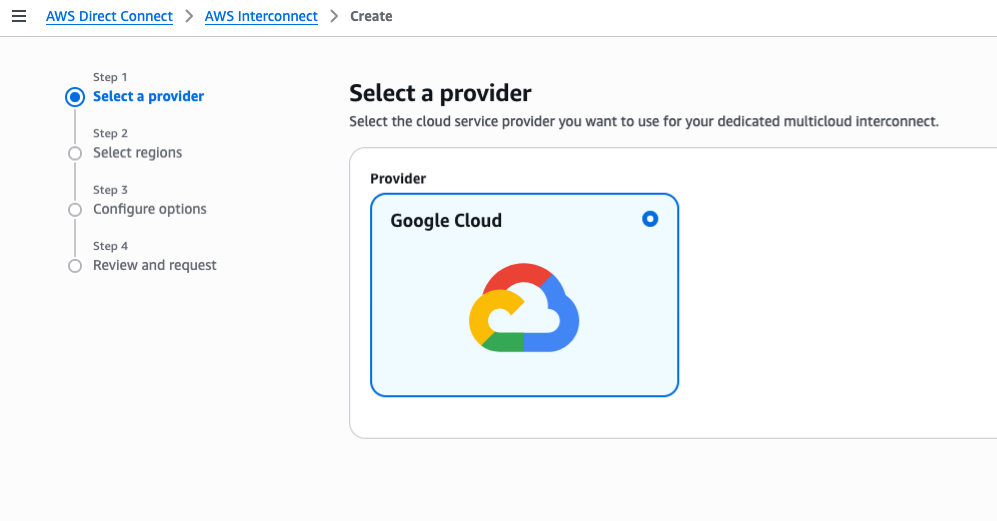
I navigate to AWS Direct Connect, AWS Interconnect and I select Create. I first choose the cloud provider I want to connect to. In this example, Google Cloud.
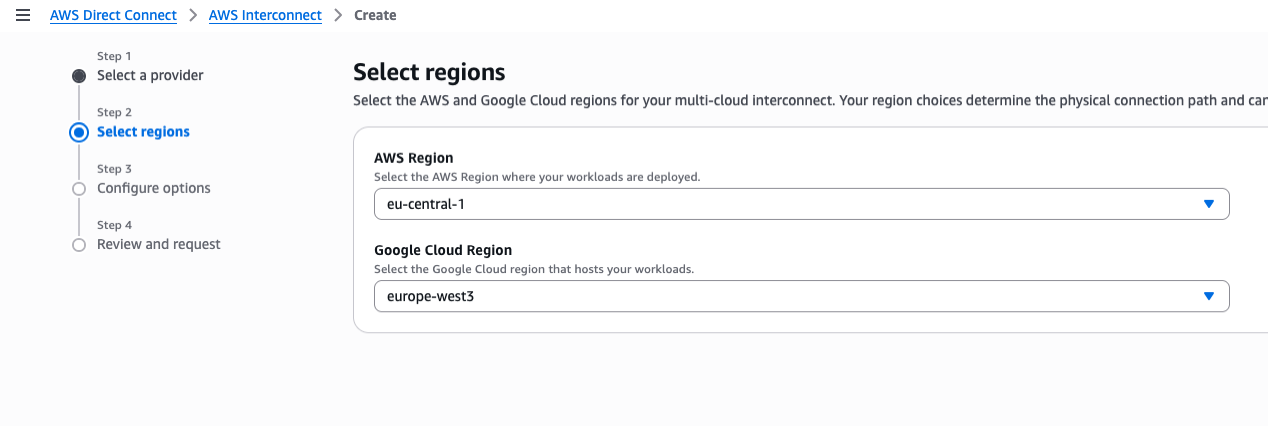
 Then, I choose the AWS Region (
eu-central-1) and the Google Cloud Region (europe-west3).
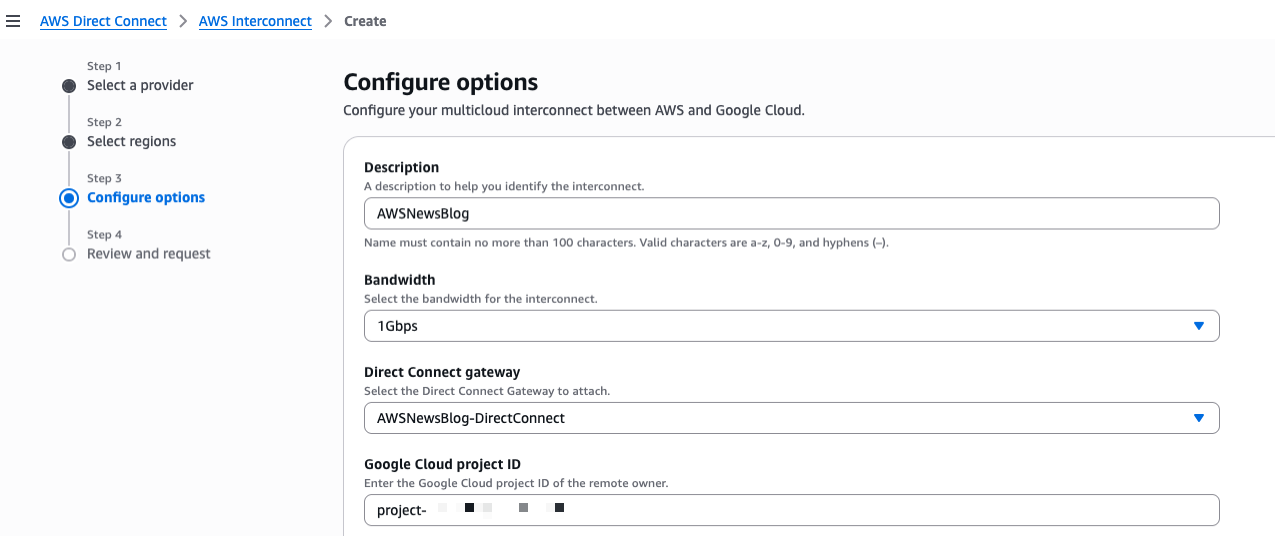
 On step 3, I enter Description,I choose the Bandwidth, the Direct Connect gateway to attach, and the ID of my Google Cloud project.
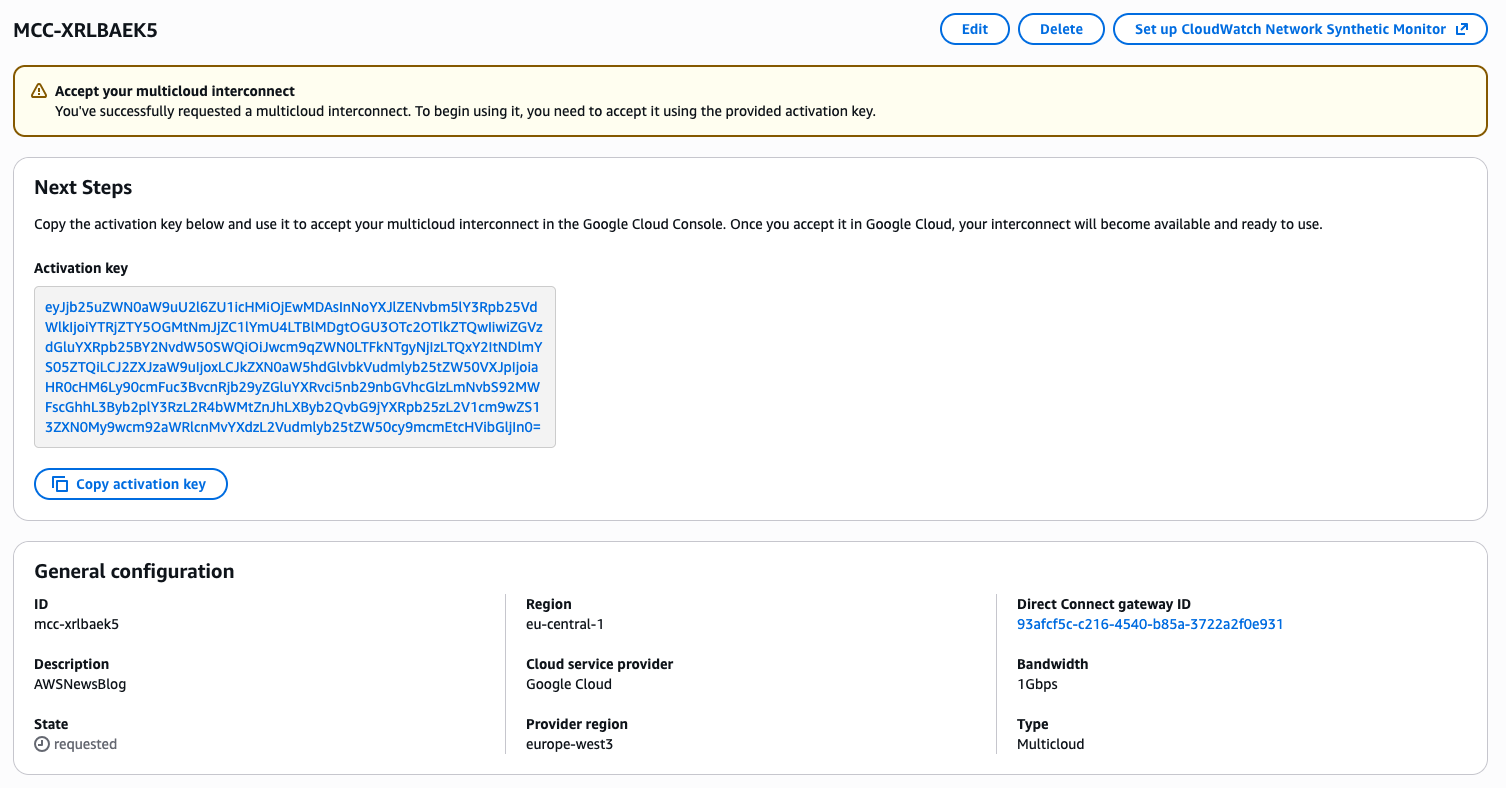
After reviewing and confirming the request, the console gives me an activation key. I will use that key to validate the request on the Google cloud side.
Step 2: create the transport and VPC Peering resources on my Google Cloud Platform (GCP) account.
Now that I have the activation key, I continue the process on the GCP side. At the time of this writing, no web-based console was available. I choose to use the GCP command line (CLI) instead. I take note of the CIDR range in the GCP VPC subnet in the europe-west3 region. Then, I open a Terminal and type:
gcloud network-connectivity transports create aws-news-blog
    --region=europe-west3
    --activation-key=${ACTIVATION_KEY}
    --network=default
    --advertised-routes=10.156.0.0/20

Create request issued for: [aws-news-blog]
...
peeringNetwork: projects/oxxxp-tp/global/networks/transport-9xxxf-vpc
...
state: PENDING_CONFIG
updateTime: '2026-03-19T09:30:51.103979219Z'
It takes a couple of minutes for the command to complete. Once the command returns, I create a peering between my GCP VPC and the new transport I just created. I can do that in the GCP console or with the gcloud command line. Because I was using the Terminal for the previous command, I continued with the command line:
gcloud compute networks peerings create aws-news-blog
      --network=default
      --peer-network=projects/oxxxp-tp/global/networks/transport-9xxxf-vpc
      --import-custom-routes
      --export-custom-routes
The network name is the name of my GCP VPC. The peer network is given in the output of the previous command.
Once completed, I can verify the peering in the GCP console.

In the AWS Interconnect console, I verify the status is available.
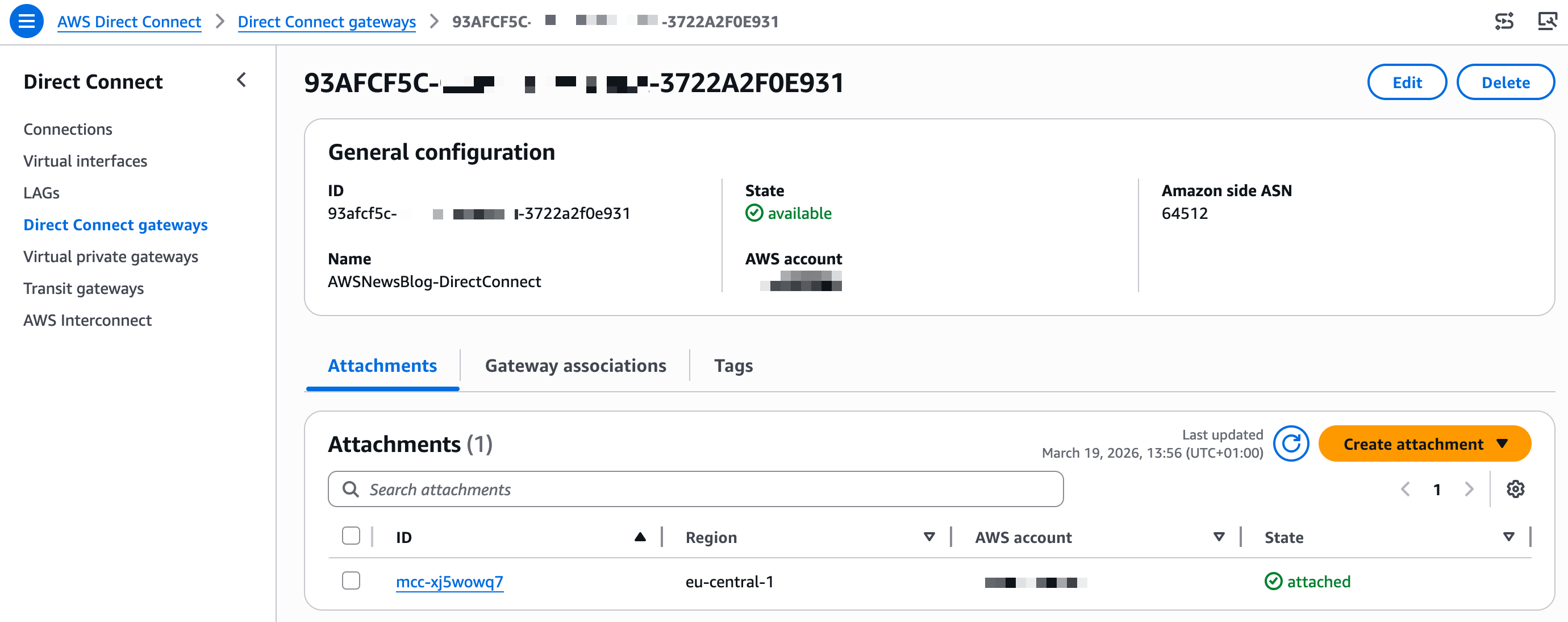
 In the AWS Direct Connect console, under Direct Connect gateways, I see the attachment to the new interconnect.
Step 3: associate the new gateway on the AWS side
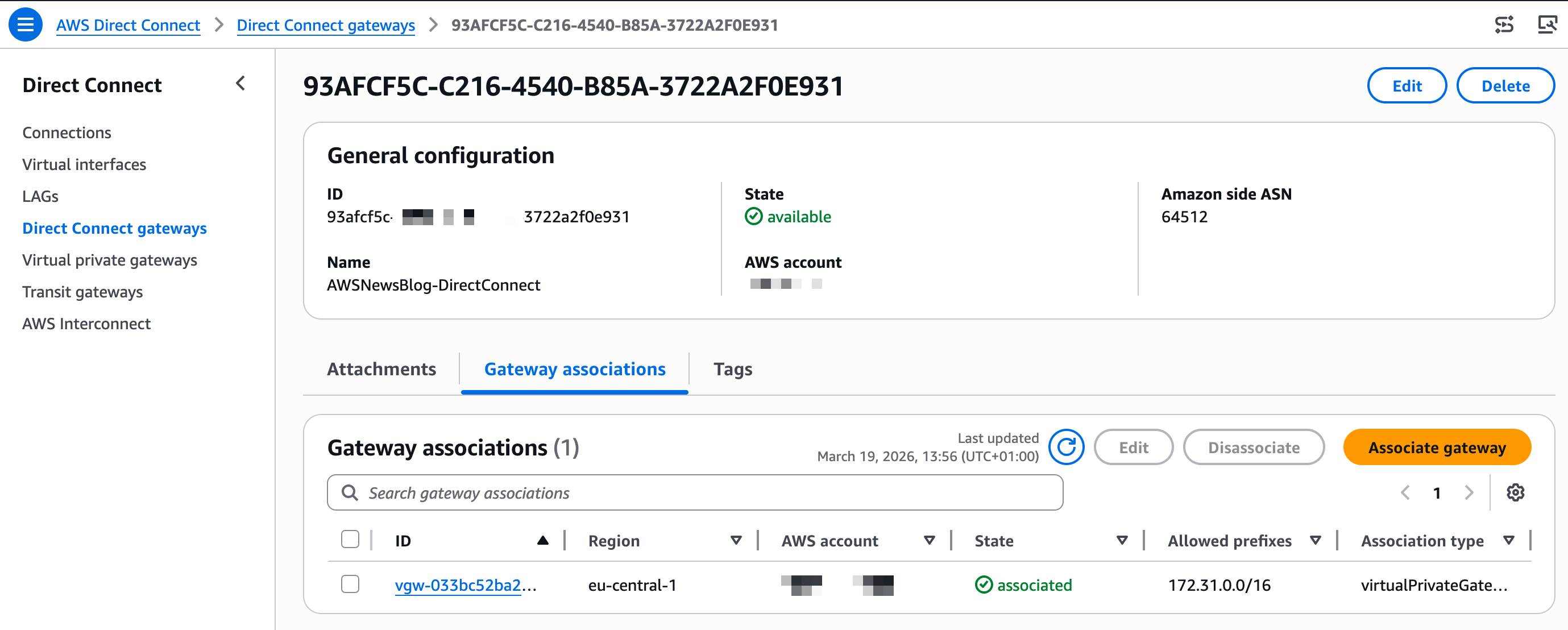
I select Gateway associations and Associate gateway to attach the Virtual Private Gateway (VGW) that I created before starting this demo (pay attention to use a VGW in the same AWS Region as the interconnect)
You don’t need to configure the network routing on the GCP side. On AWS, there is a final step: add a route entry in your VPC Route tables to send all traffic to the GCP IP address range through the Virtual Gateway.
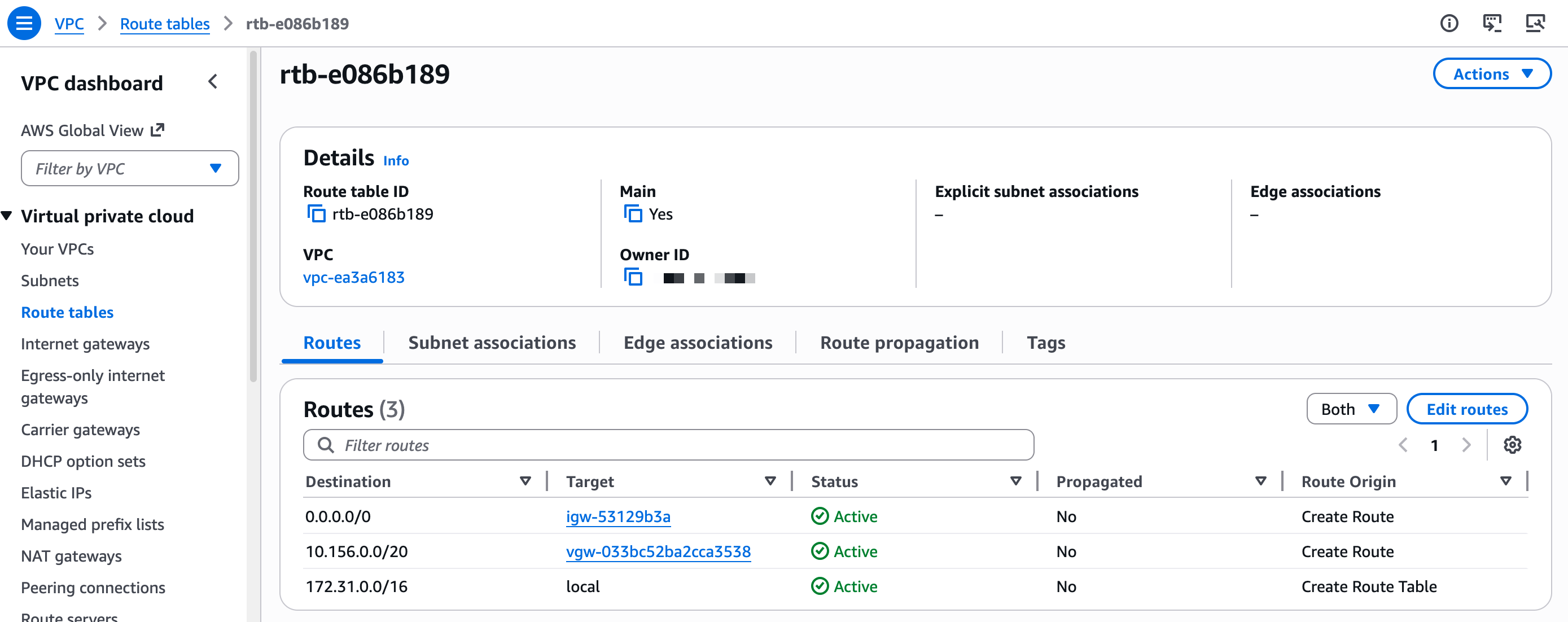
Once the network setup is done. I start two compute instances, one on AWS and one on GCP.
On AWS, I verify the Security Group accepts ingress traffic on TCP:8080. I connect to the machine and I start a minimal web server:
python3 -c
"from http.server import HTTPServer, BaseHTTPRequestHandler
class H(BaseHTTPRequestHandler):
   def do_GET(self):
      self.send_response(200);self.end_headers()
      self.wfile.write(b'Hello AWS World!nn')
HTTPServer(('',8080),H).serve_forever()"
On the GCP side, I open a SSH session to the machine and I call the AWS web server by its private IP address.
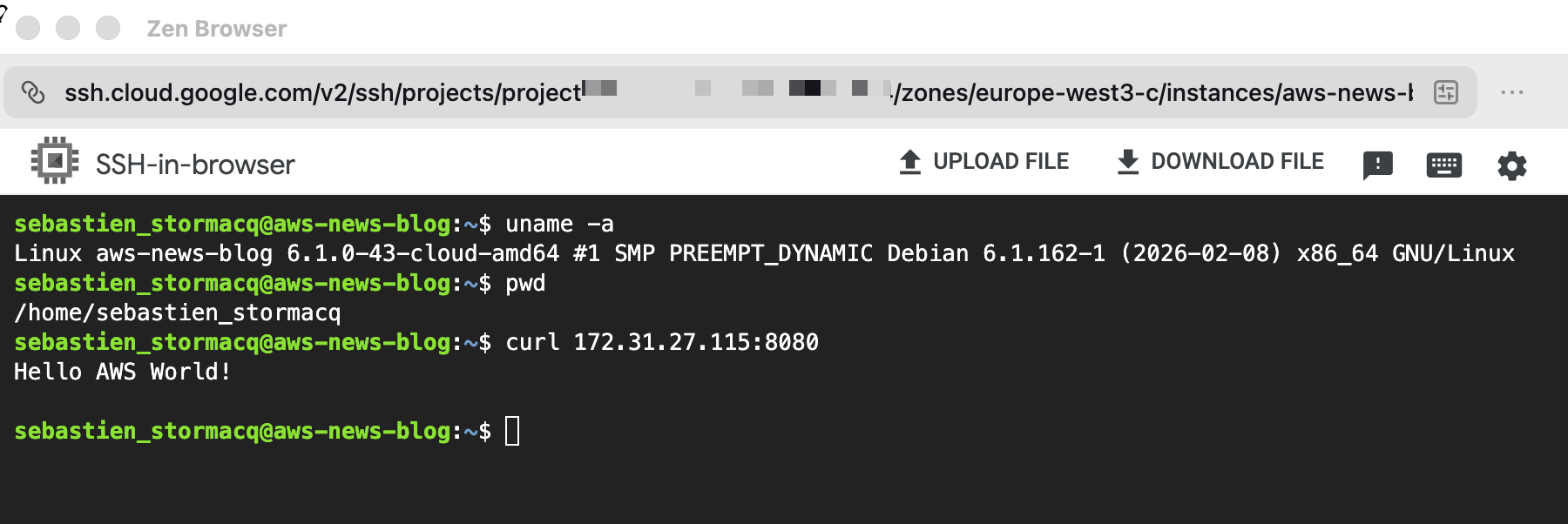
Et voilà! I have a private network route between my two networks, entirely managed by the two Cloud Service Providers.
Things to know
There are a couple of configuration options that you should keep in mind:
- When connecting networks, pay attention to the IP addresses range on both sides. The GCP and AWS VPC ranges can’t overlap. For this demo, the default range on AWS was
172.31.0.0/16and the default on GCP was10.156.0.0/20. I was able to proceed with these default values. - You can configure IPV4, IPV6, or both on each side. You must select the same option on both sides.
- The Maximum Transmission Unit (MTU) must be the same on both VPC. The default values for AWS VPCs and GCP VPCs are not. MTU is the largest packet size, in bytes, that a network interface can transmit without fragmentation. Mismatched MTU sizes between peered VPCs cause packet drops or fragmentation, leading to silent data loss, degraded throughput, and broken connections across the interconnect.
- For more details, refer to the GCP Partner Cross Cloud Interconnect and the AWS Interconnect User Guide.
Reference architectures
When your deployment grows and you have multiple VPCs in a single region, AWS Transit Gateway gives you a centralized routing hub to connect them all through a single Interconnect attachment. You can segment traffic between environments, apply consistent routing policies, and integrate AWS Network Firewall if you need to inspect what crosses the cloud boundary.
And when you’re operating at global scale, with workloads spread across multiple AWS Regions and multiple Google Cloud environments, AWS Cloud WAN extends that same model across the world. Any region in your network can reach any Interconnect attachment globally, with centralized policy management and segment-based routing that applies consistently everywhere you operate.
My colleagues Alexandra and Santiago documented these reference architectures in their blog post: Build resilient and scalable multicloud connectivity architectures with AWS Interconnect – multicloud.
AWS Interconnect – last mile
Based on the same architecture and design as AWS Interconnect – multicloud, AWS Interconnect – last mile provides the ability to connect your on-premises or remote location to AWS through a participating network provider’s last-mile infrastructure, directly from the AWS Management Console.
The onboarding process mirrors AWS Interconnect – multicloud: you select a provider, authenticate, and specify your connection endpoints and bandwidth. AWS generates an activation key that you provide in the provider console to complete the configuration. AWS Interconnect – last mile automatically provisions four redundant connections across two physical locations, configures BGP routing, and activates MACsec encryption and Jumbo Frames by default. The result is a resilient private connection to AWS that aligns with best practices, without requiring you to manually configure networking components.
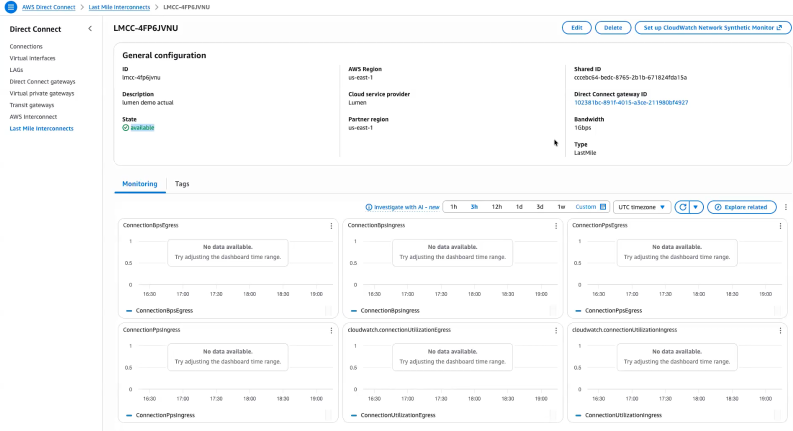
AWS Interconnect – last mile supports bandwidths from 1 Gbps to 100 Gbps, and you can adjust bandwidth from the console without reprovisioning. The service includes a 99.99% availability SLA up to the Direct Connect port and bundles CloudWatch Network Synthetic Monitor for connection health monitoring. Just like AWS Interconnect – multicloud, AWS Interconnect – last mile attaches to a Direct Connect Gateway, which connects to your Virtual Private Gateway, Transit Gateway, or AWS Cloud WAN deployment. For more details, refer to the AWS Interconnect User Guide.
Scott Yow, SVP Product at Lumen Technologies, wrote:
By combining AWS Interconnect – last mile with Lumen fiber network and Cloud Interconnect, we simplify the last-mile complexity that often slows cloud adoption and enable a faster, and more resilient path to AWS for customers.
Pricing and availability
AWS Interconnect – multicloud and AWS Interconnect – last mile pricing is based on a flat hourly rate for the capacity you request, billed prorata by the hour. You select the bandwidth tier that fits your workload needs.
AWS Interconnect – multicloud pricing varies by region pair: a connection between US East (N. Virginia) and Google Cloud N. Virginia is priced differently from a connection between US East (N. Virginia) and a more distant region. When you use AWS Cloud WAN, the global any-to-any routing model means traffic can traverse multiple regions, which affects the total cost of your deployment. I recommend reviewing the AWS Interconnect pricing page for the full rate card by region pair and capacity tier before sizing your connection.
AWS Interconnect – multicloud is available today in five region pairs: US East (N. Virginia) to Google Cloud N. Virginia, US West (N. California) to Google Cloud Los Angeles, US West (Oregon) to Google Cloud Oregon, Europe (London) to Google Cloud London, and Europe (Frankfurt) to Google Cloud Frankfurt. Microsoft Azure support is coming later in 2026.
AWS Interconnect – last mile is launching in US East (N. Virginia) with Lumen as the initial partner. Additional partners, including AT&T and Megaport, are in progress, and additional regions are planned.
To get started with AWS Interconnect, visit the AWS Direct Connect console and select AWS Interconnect from the navigation menu.
I’d love to hear how you’re using AWS Interconnect in your environment. Leave a comment below or reach out through the AWS re:Post community.